Subscription Management: Types, Groups, Icons
Feature overview
Subscription metadata in Spotto lets you label subscriptions with a type, group, and emoji so ownership and environment intent are visible at a glance. It also adds a subscription-type filter to the selector, so you can scope views to production, non-production, or mixed subscriptions without guesswork.
Why use this?
- Subscription names alone rarely tell you who owns them or what environment they represent.
- Grouping and emoji labels make it easier to scan long lists and avoid "wrong subscription" mistakes.
- The type filter makes production vs non-production scope explicit when you are filtering dashboards or investigation views.
Key capabilities
- Subscription type: Set a subscription to Production, Non-Production, or Mixed.
- Groups: Organize subscriptions under team or domain groups.
- Emoji labels: Add a visual anchor for fast scanning.
- Selector filtering: Filter by subscription type inside the subscription selector dropdown.
Where to edit subscription metadata
Open Connectors -> Connectors -> Cloud Accounts in the Spotto Portal, then open Subscription Status for a cloud account. Each subscription row supports editing the type, group, emoji, and friendly name.
For Azure credential updates (including changing Service Principal Client ID on an existing cloud account), see Add or update Azure account in Spotto.
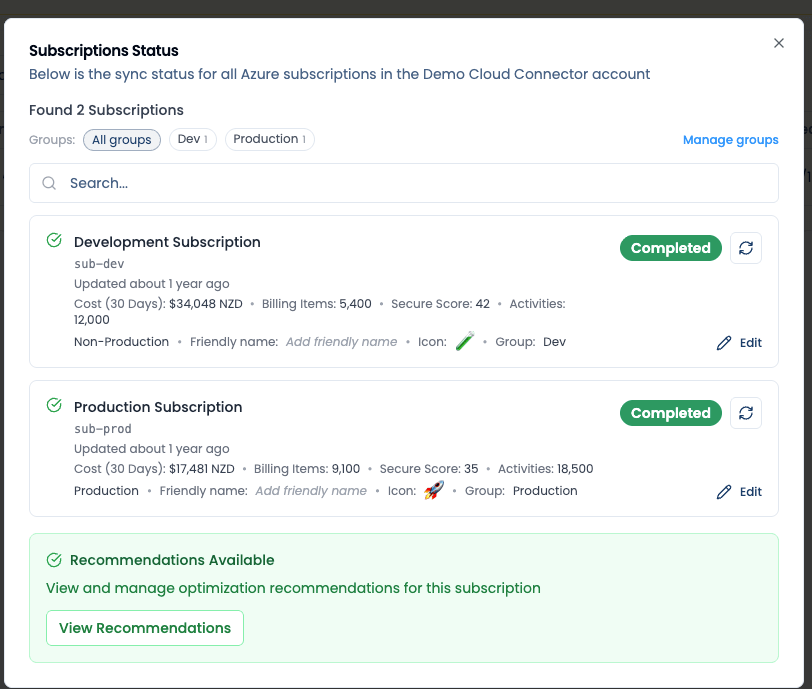
Subscription types and defaults
- Production: Everything in the subscription is production workloads.
- Non-Production: Dev, test, or staging workloads.
- Mixed: Both production and non-production workloads.
If no type is selected, Spotto defaults the display to Production. In the UI you will see a dotted underline with a tooltip explaining the default so you can correct it if needed.
Subscription selector filters
The subscription selector includes a Type filter (All, Production, Non-Production, Mixed). This filter applies before search and selection logic, so "Select all" only applies to the currently filtered set.
Ungrouped subscriptions are shown at the same level as group headers, not inside a separate bucket.
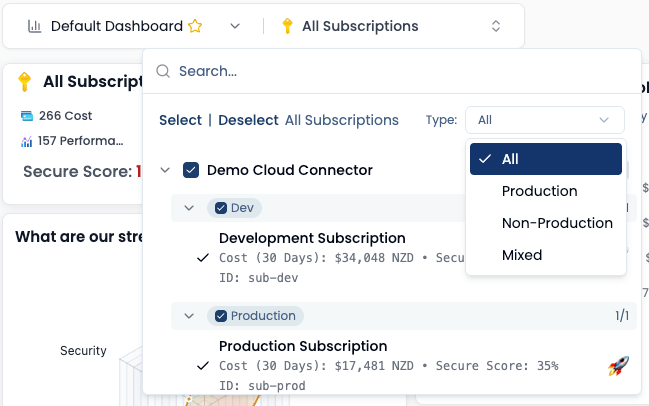
Technical reference
| Component | Details |
|---|---|
| Inputs | Subscription metadata stored per subscription (type, group, emoji). |
| Outputs | Metadata badges in Subscription Status and filtering in the subscription selector. |
| Defaults | If type is not set, the UI defaults to Production with a tooltip to highlight the assumption. |
Troubleshooting
The UI shows Production but I never set it
What you're seeing: A subscription shows Production with a dotted underline and tooltip.
Likely cause: The subscription type is not selected, so the UI defaults to Production.
How to fix:
- Open Subscription Status for the cloud account.
- Edit the subscription and choose the correct type.
I don't see the subscription in the selector after filtering
What you're seeing: A subscription disappears after you filter by type.
Likely cause: The subscription type does not match the filter selection.
How to fix:
- Switch the Type filter to All and confirm the subscription appears.
- Update the subscription type if it is incorrect.