Cloud Resources: Azure Inventory and Spend
Overview
Resources in Spotto (the Resources page) is an Azure resource inventory and Azure resources list that helps you find the right resource quickly, understand what it costs (last 30 days), and see what recommendations apply (Cost, Security, Reliability, Performance, and more).
If you’ve ever asked “which resources are driving spend, and what should we fix first?” this page is the answer that doesn’t involve exporting three reports and a fourth coffee.
Feature overview
Cloud Resources lists the Azure resources in your selected subscriptions with:
- A per-resource recommendation count broken down by category (security/reliability/performance/cost and related pillars)
- 30-day spend (where available)
- A potential savings range when cost recommendations or cost estimation data is available
- First-class filtering by tags, resource type, location, pillar/category, and more
Clicking a resource opens its detail page so you can review recommendations, cost history, metrics, and change history.
Why use this? (Jobs, pains, gains)
Jobs to be done
- When I need to reduce cloud spend, I want to rank resources by cost and savings potential, so I can pick the highest-impact work first.
- When a recommendation shows up, I want to quickly find the affected resource(s), so I can validate and take action without hunting through the Azure portal.
- When leadership asks “what’s our risk profile?”, I want to slice resources by security/reliability/performance signals, so the conversation is backed by inventory, not vibes.
- When tags are messy, I want to filter and group using consistent tags, so reporting and ownership don’t depend on perfect Azure tagging.
Common pains
- Your “resource list” is usually split across subscriptions, portals, and dashboards that don’t agree.
- You can see recommendations, but it’s hard to connect them to cost and ownership signals fast enough to prioritise.
- Tags exist, but they drift (or they’re missing), and filtering becomes unreliable.
- Cost attribution for some services doesn’t map cleanly to a single resource (shared services, subscription-level charges, etc.).
What you gain
- One inventory view across selected subscriptions, designed for triage.
- Immediate answers for “what’s it costing?” and “what can we improve?” on the same row.
- Filters that work the way teams actually work: tag-based, pillar-based, and spend-based.
- Fast drill-down into a resource’s recommendation workflow and supporting evidence.
Turn the inventory into a priority decision
Select Business Value beside Notes and the subscription selector. The brief combines live inventory, resources with recommendations, high-impact work, tagging gaps, and evidence coverage into a first improvement package.
Generate tailors only the narrative for permitted users and saves it to the exact scope. Clear removes that saved narrative and immediately restores the standard Business Value content without deleting Customer Context or changing live facts. Regenerate when evidence changes. Above 100 subscriptions, the curated live brief remains available without tailoring.
Use it to agree which business objective matters now—cost, security, performance, reliability, or operational excellence—then validate which resources support customer-facing, business-critical, or data-sensitive services. Tags for owner, criticality, environment, classification, and allocation make that validation repeatable; never store sensitive content in tags.
The decision should identify the first service and resource package, accountable owners, dependencies, change window, and success measure. The brief does not invent business criticality or a universal priority score: stakeholders still need to confirm service importance and delivery constraints.
Key capabilities
Where to find it
In the Spotto Portal, open your company and select Investigate -> Cloud Estate -> Resources from the left navigation.
Scope the view to the subscriptions you care about
Use the subscription selector at the top to pick one or more subscriptions. Your selection is persisted (and the URL updates), so you can share a filtered view with someone else without writing “click these 7 filters” instructions.
See recommendations by category (pills you can filter on)
Each resource shows a category distribution (Cost, Security, Reliability, Performance, Compliance, Operational Excellence, High Availability). Use this to:
- Find resources with recommendations in a specific pillar.
- Compare “lots of small issues” vs “a few big ones” at a glance.
These categories are designed to be familiar to Well-Architected-style conversations, but they’re not a 1:1 mapping to every framework or provider label. Treat them as practical triage buckets.
Prioritise by spend and savings range
Cloud Resources shows:
- Spend (last 30 days) per resource (when cost can be attributed cleanly)
- A savings range when Spotto has enough information to estimate it
This is built for prioritisation: you can sort the table by Spend, Savings range, or Total recommendations.
Savings is an estimate. Some resources won’t show a savings range (for example, when the underlying recommendation doesn’t map to a specific savings calculation).
Filter by what matters: tags, types, pillars, and cost thresholds
Filters include:
- Tags in
key: valueformat (Spotto shows both Azure tags and Spotto tags) - Resource types (service/category info where available)
- Location
- Pillar/category (recommendation categories)
- Impact level, created time, and minimum spend
Customize the table (and export it)
- Use Column selector to show/hide columns (resource name stays visible because we’re not monsters).
- Use Export to CSV to share results for backlog planning, reporting, or “please stop deploying untagged resources” conversations.
Tag-driven workflows (without relying on write access to Azure)
You can click tags directly in the table to add them as filters. From the Tags column, Spotto can also launch an Add tag flow that helps you create a targeted Tag Rule (Spotto tags), without writing anything back to Azure.
See: Tagging
Drill into a single resource
Selecting a resource takes you to the resource detail view with tabs for:
- Recommendations (triage, prioritise, dismiss/restore, share)
- Cost (cost usage and savings opportunities)
- Metrics (resource performance/health signals when available)
- Change history (activity logs when available)
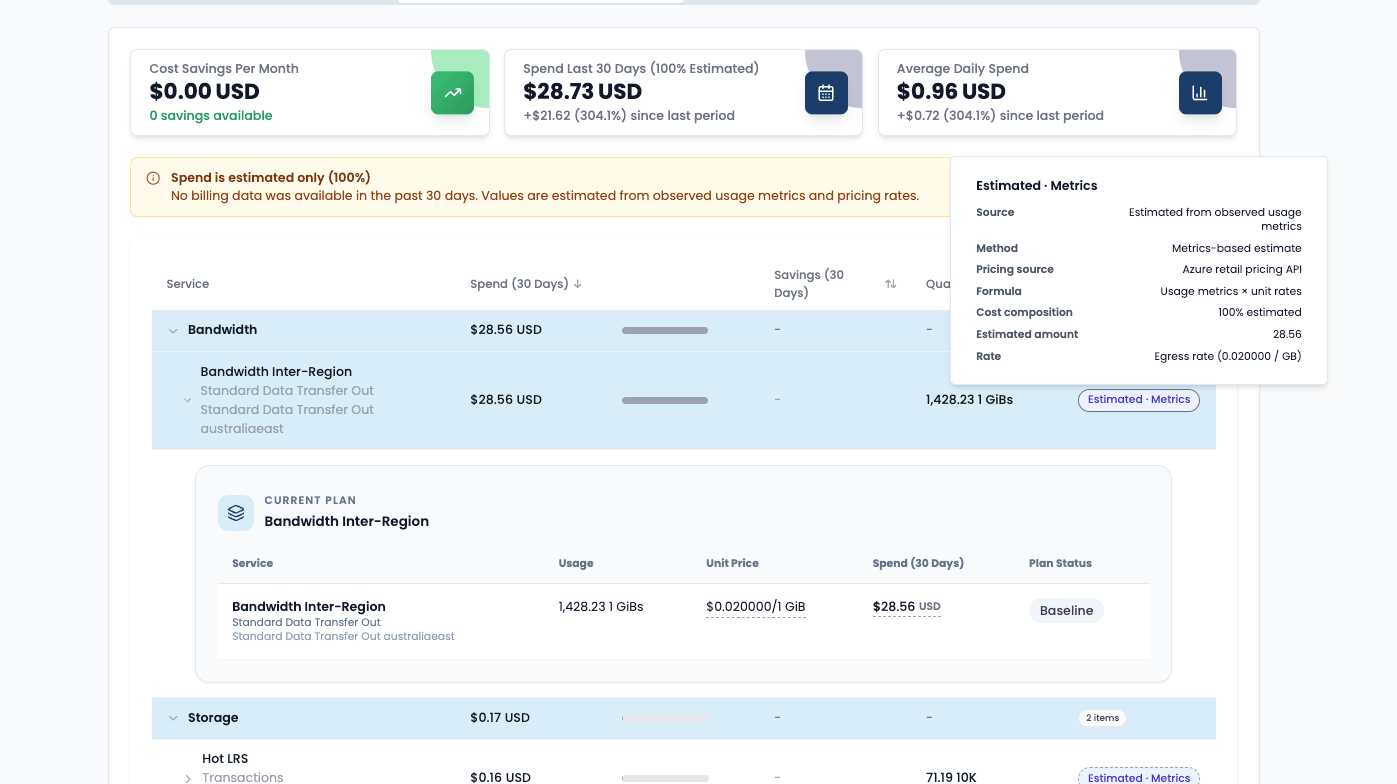
In the Cost tab, the top cards are a summary for that resource:
- Spend can be billed, estimated, or a mix of both depending on data availability.
- Spend Last 30 Days may show a label like
100% Estimatedwhen billing data is not yet available for that period. - Savings opportunities can still appear when Spotto has enough usage and pricing context.
When you see Estimated, Spotto is giving you an early spend signal so teams can still investigate and prioritise work during billing-data delay windows.
Use it for operational decisions first, then validate final totals when billed data is available.
This is especially useful for subscriptions under sponsorship or heavy credit coverage, where detailed billed amounts may be delayed or not visible during the current cycle.
Cost Usage Timeline
Within the same Cost tab, Spotto also provides a Timeline view for the resource. This is useful when you need to understand when a cost item changed, not only how much it cost.
Use the timeline to see:
- which cost items are billed
- which cost items are still estimated
- which older items are now historical / inactive
- where a mid-month replacement or tier change happened
This is especially useful for resources such as SQL Managed Instances, managed disks, and storage accounts where the current pricing shape can change during the month and you need to see both the old and new windows clearly.
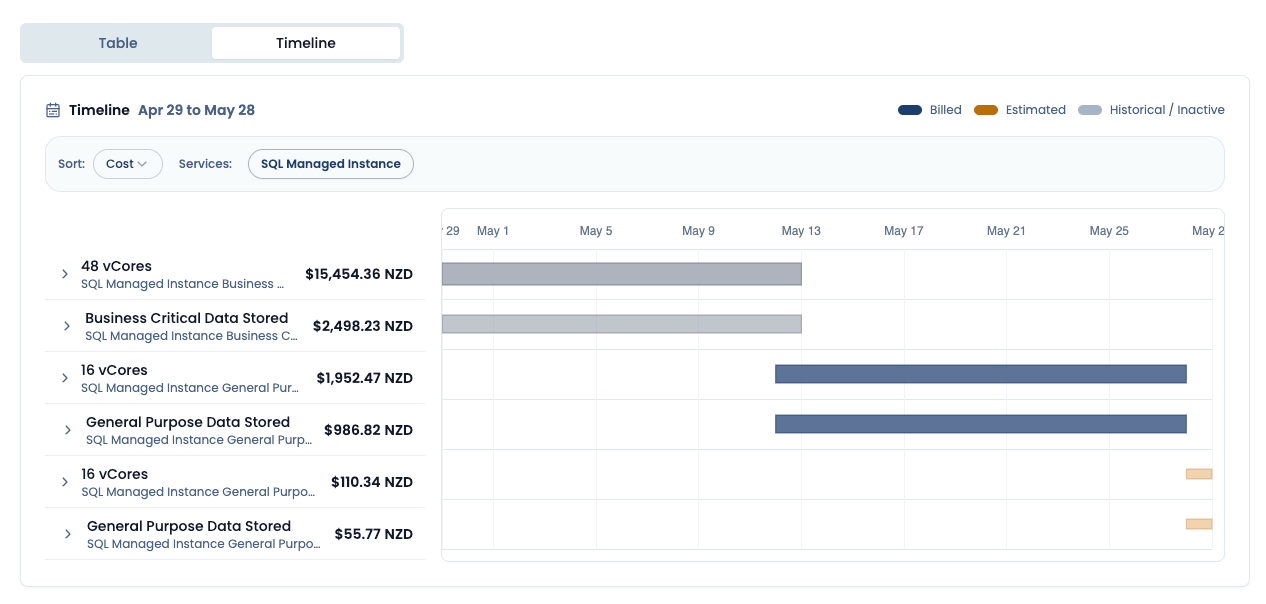
Use the timeline when you want to answer questions like:
- “Did this new cost item begin after the replacement date?”
- “Is this short tail billed or estimated?”
- “Which rows are current, and which are only historical context?”
For a deeper walkthrough of the timeline behavior, see Resource Cost Usage Timeline.
Metrics and activity correlation
The resource detail view can also correlate metrics with change activity by placing activity markers directly on the primary metric chart.
See: Resource Metrics Activity Markers
Technical reference (what Cloud Resources uses)
| Component | Details |
|---|---|
| Inputs | Ingested Azure resource inventory for the selected subscriptions, per-resource recommendation summaries (and optional cost estimation payloads), plus tag sources (Azure tags + Spotto tags). |
| Outputs | Summary cards (total spend + savings range + category distribution), a searchable/filterable/sortable resource table, and links into per-resource detail views. |
| Defaults | Table page size is 100 items. Default sort prioritises savings/recommendation signals over raw spend when no explicit sort is selected. Filters are stored in the URL so views can be shared. |
How it differs from the Azure portal
Azure is the system of record for resources, but it doesn’t optimize for the operational workflow “pick the next best improvement across subscriptions.”
Cloud Resources is built for that workflow:
- It combines inventory, recommendations, spend, and tags in one place.
- It’s optimized for filter → prioritise → drill down, not “navigate 5 blades deep and hope you remember the path.”
- It works cleanly with read-only operating models (especially when combined with Spotto tags).
Relationship to Retirement Tracker (why it’s useful)
The Retirement Tracker is valuable because it answers a different, equally annoying question: “what’s going end-of-support, and what does it affect here?”
In practice, it’s a preventative workflow:
- It surfaces upcoming and expired retirements with triage hints (risk/effort/confidence).
- It links retirements to affected resources in your inventory.
- Those resource links jump straight back into Cloud Resources / resource detail pages, where teams can evaluate recommendations and plan remediation.
Troubleshooting
I don’t see any resources
What you’re seeing: An empty state or an empty table. Likely causes:
- No subscriptions selected.
- The subscription is still syncing / not ready. How to fix:
- Select at least one subscription in the subscription picker.
- If the subscription is onboarding, wait for ingestion to complete and refresh.
Spend looks lower than Azure or a resource shows $0
What you’re seeing: Spend is missing or unexpectedly low for some resources. Likely causes:
- Some costs are subscription-level or shared and can’t be attributed cleanly to a single resource.
- Spend is shown as a rolling “last 30 days” window; your Azure view might be using a different range.
- In sponsorship/credit-heavy subscriptions, billed detail may lag or appear reduced while credits are applied. How to fix:
- Confirm the time window you’re comparing against.
- Use the resource Cost tab and estimation labels to continue investigation before billed detail fully lands.
- Validate final totals once provider billed data is available for that period.
A savings range is missing
What you’re seeing: Savings is blank for some resources. Likely causes: Not every recommendation includes a savings calculation, and not every resource has cost estimation coverage. How to fix: Use the Recommendations tab on the resource detail page to prioritise based on recommendation impact, even when savings is unknown.
Looking to enhance your cloud setup for cost efficiency, performance, reliability, or security?
Talk to a cloud specialist. Email us or schedule a 30-minute consultation and let's optimize your cloud environment together.
Book a Free Consultation