Cost Saving Opportunities: Target Cost Plans
Overview
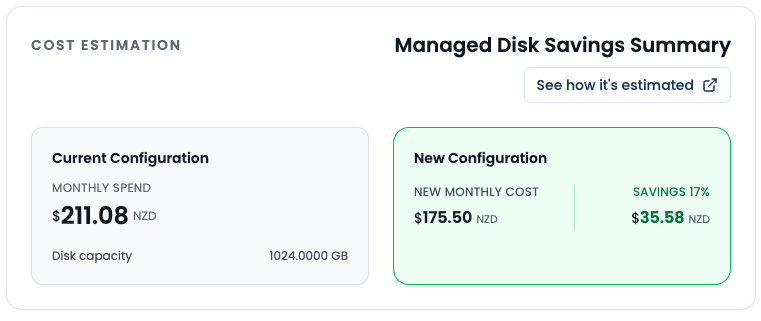
Cost Saving Opportunities in Spotto show current vs target configuration costs for a specific recommendation on a resource. The goal is simple: answer “what changes if we apply this recommendation?” without rolling multiple suggestions into one number.
Why use this?
Common pains
- Recommendations list the idea, but the savings math is unclear.
- Multiple recommendations on the same resource can make savings look inflated or inconsistent.
- Teams need a quick, defensible view they can copy into a ticket or planning doc.
What you gain
- A before/after summary tied to one recommendation.
- Numbers grounded in target cost data (not guesses or rollups).
- A consistent view across resource types that use the same target-cost pattern.
- For virtual machines, a clearer comparison between the current SKU, the recommended target SKU, and viable alternatives.
Coverage (resource types)
Current cost saving opportunities are generated for the following Azure resource types:
- Storage Accounts (
microsoft.storage/storageaccounts) - Virtual Machines (
microsoft.compute/virtualmachines) - Log Analytics Workspaces (
microsoft.operationalinsights/workspaces) - Managed Disks (
microsoft.compute/disks) - App Service Plans (
microsoft.web/serverfarms) - Load Balancers (
microsoft.network/loadbalancers) - Application Gateways (
microsoft.network/applicationgateways)
Coverage expands over time as new strategies are added. If a resource type is missing, it likely doesn’t have a target-cost strategy yet.
How it works
- Recommendation target costs are generated in cloud-engine using the strategy for each resource type.
- The resource detail page reads those target costs and renders a Cost Saving Opportunities summary.
- If multiple recommendations exist, the UI shows the plan that matches the selected recommendation.
VM alternative comparisons
For virtual machines, the cheapest-looking target is not always the best operational answer. Spotto compares the current VM configuration with the recommended target and highlights the capability differences that matter before someone changes a production SKU and learns about memory pressure the exciting way.
Use the VM comparison as a planning aid:
- Current SKU: the VM size currently running, including cost and key capabilities.
- Recommended target SKU: the size linked to the selected recommendation and target-cost plan.
- Alternative SKUs: other viable sizes to consider when the first target conflicts with workload, region, storage, or governance constraints.
SKU capability differences to review
When comparing VM alternatives, check capability differences, not only monthly cost.
| Comparison area | What to check | Why it matters |
|---|---|---|
| vCPU and memory | Core count, memory size, and memory-to-vCPU ratio. | A lower-cost SKU can still be a bad fit if it removes the bottlenecked resource. |
| CPU family and generation | Processor family, architecture, and whether the target is a newer or older series. | Newer generations can change price/performance; older generations may be kept only for compatibility. |
| Storage capability | Premium Storage support, local/temp disk presence, data disk limits, remote disk IOPS, and throughput. | Storage-heavy workloads can regress even when CPU and memory look safe. |
| Network capability | Network bandwidth, NIC limits, and Accelerated Networking support. | Network appliances, gateways, and high-traffic services need more than a cheap vCPU count. |
| Special features | GPU, confidential computing, NVMe, ephemeral OS disk, or local SSD requirements. | These are workload constraints, not nice-to-have labels. |
| Region and quota | Whether the target SKU is available in the VM's region and within quota. | A theoretical target SKU does not help if Azure cannot allocate it. |
For Azure-specific SKU behavior, use Azure VM sizes and Change the size of a virtual machine when validating a change plan.
Cross-family alternatives
VM recommendations may point to a smaller size in the same family, a newer generation, or a different family. That is useful, but it deserves a quick sanity check:
- Same-family resize: usually the easiest comparison. For example, moving within a D-series family keeps the workload profile similar while changing scale.
- Newer generation: can improve price/performance, but confirm region availability, OS support, and any dependency on current hardware behavior.
- Different family: useful when the workload shape changed. For example, moving from a balanced D-family size to an E-family size can preserve or increase memory while reducing CPU; moving to an F-family size can favour CPU over memory.
- Burstable family: can be attractive for low-average, spiky workloads, but confirm CPU credit behavior and whether the workload can tolerate baseline throttling.
Azure Advisor also documents that VM cost recommendations can include smaller SKUs in the same family, newer versions, or different families, and that recommendations consider CPU, memory, outbound network utilization, regional support, and capability constraints. See Azure Advisor VM cost recommendations for the provider-side criteria.
Performance impact and resize planning
Treat VM resize recommendations as change candidates, not autopilot instructions.
- Downgrades should preserve headroom for normal peaks, backup windows, batch jobs, and release-day traffic.
- Upgrades should address the actual bottleneck: CPU, memory, disk I/O, storage throughput, or network throughput.
- Stateful workloads need extra care because resizing can restart the VM, and some resize paths require deallocation.
- Capacity-sensitive workloads should confirm target SKU availability before the change window.
- Commitments should be checked before cross-family moves. Reserved Instances and savings plans can change the real savings story.
Azure documents VM resizing as a potentially disruptive operation because changing size can restart the VM, and deallocation may be required when the target size is not available on the current hardware cluster. Plan accordingly; nobody enjoys discovering that during a maintenance bridge.
CPU and memory upgrade/downgrade commentary
Use CPU and memory separately when assessing a VM alternative:
| Change pattern | What it usually means | What to validate |
|---|---|---|
| CPU downgrade, memory unchanged | Good candidate when CPU is consistently low but the working set still needs the same memory. | Check peak CPU, queue depth, latency, and scheduled jobs. |
| CPU downgrade, memory downgrade | Strongest savings case, but also the easiest way to create a performance issue if utilization data is incomplete. | Validate CPU peaks, memory peaks, cache behavior, and swap/pagefile activity. |
| CPU downgrade, memory upgrade | Often a cross-family move for memory-heavy workloads where CPU is overprovisioned. | Confirm licensing, memory pressure, and whether the application benefits from the higher memory-to-vCPU ratio. |
| CPU upgrade, memory unchanged | Usually for CPU-bound services where memory is not the bottleneck. | Check whether disk or network limits will become the next bottleneck. |
| CPU upgrade, memory upgrade | Usually performance remediation rather than cost saving. | Validate the business reason, expected performance benefit, and whether scale-out would be cleaner. |
| Memory downgrade, CPU unchanged | Possible when memory was provisioned for old demand or a conservative template. | Check P95/P99 memory usage, garbage collection, database buffers, and file cache dependency. |
| Memory upgrade, CPU unchanged | Useful for databases, caches, analytics, and applications with memory pressure but adequate CPU. | Confirm the target family supports the required memory ratio and storage/network limits. |
Where to find it
- Open Investigate -> Cloud Estate -> Resources in the Spotto Portal.
- Select a resource and open the Recommendations tab.
- When a recommendation has target cost data, the Cost Saving Opportunities card appears with Current Configuration and New Configuration.
Technical reference
| Component | Details |
|---|---|
| Inputs | Resource cost summary (30-day spend), recommendation metadata, and recommendation target cost payloads. |
| Outputs | Current vs target configuration card, VM alternative comparison details when available, projected monthly cost, and estimated monthly savings for the selected recommendation. |
| Defaults | If multiple plans exist, the plan linked to the selected recommendation is shown. If no match exists, the best available plan is shown. |
Troubleshooting
I don’t see Cost Saving Opportunities on a resource
What you’re seeing: No Cost Saving Opportunities card on the resource detail page.
Likely causes:
- The resource type is not yet supported.
- The selected recommendation does not include target cost data. How to fix:
- Confirm the resource type is in the coverage list above.
- Try a different recommendation on the same resource.
Savings look smaller than expected
What you’re seeing: The projected savings seem low compared to the full set of recommendations.
Likely causes:
- The card shows savings for the selected recommendation only.
How to fix:
- Review other recommendations on the resource and compare their target costs.
- Use the Recommendations page to assess overall savings across resources.
Looking to enhance your cloud setup for cost efficiency, performance, reliability, or security?
Talk to a cloud specialist. Email us or schedule a 30-minute consultation and let's optimize your cloud environment together.
Book a Free Consultation