Recommendations: Triage Azure Advisor and Savings
Overview
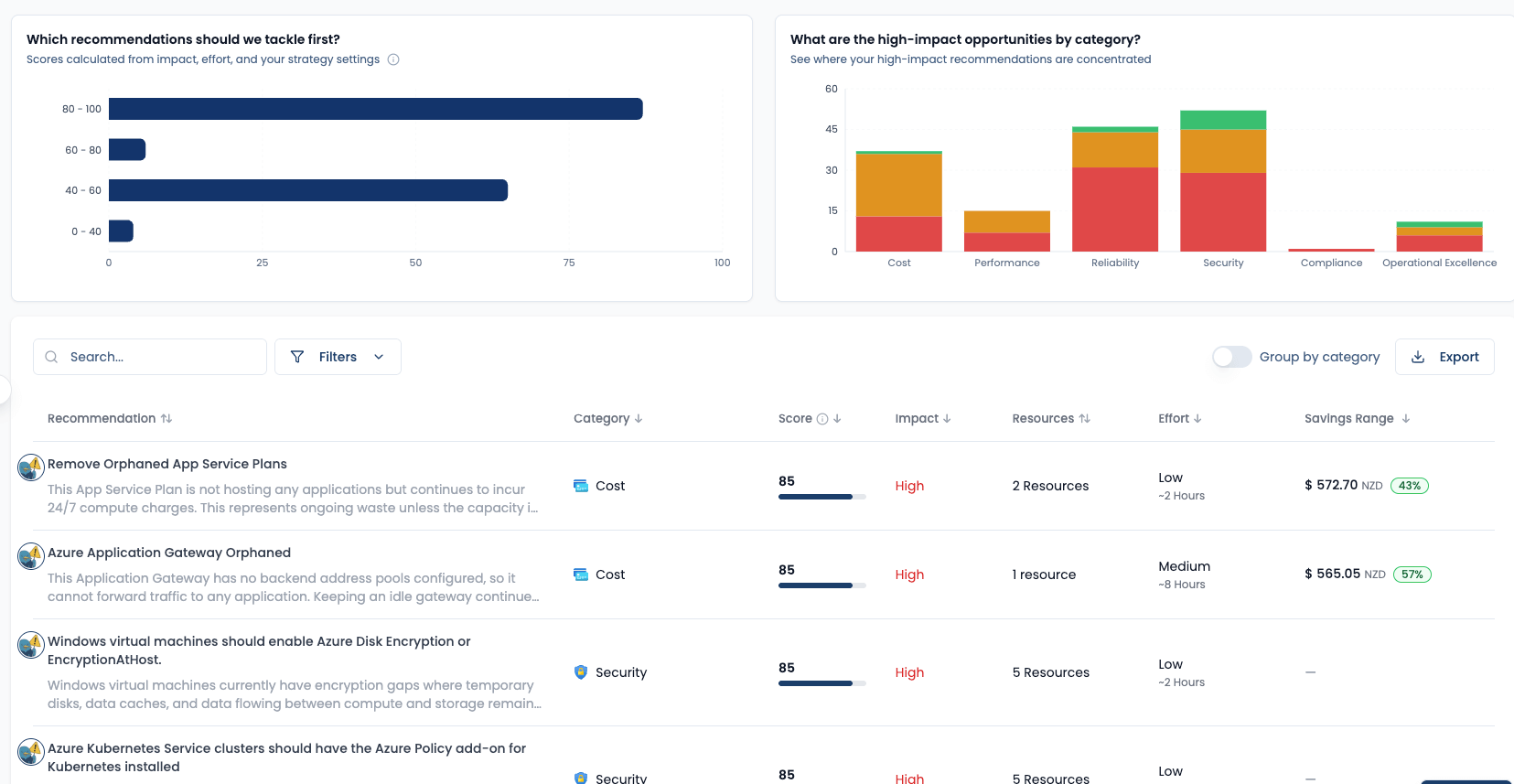
The Recommendations page in Spotto is where you triage cloud optimization (including Azure Advisor recommendations and Spotto-generated guidance) across one or more subscriptions. It shows category, impact, effort, estimated savings, and how many resources are affected, so you can prioritise work without rebuilding the same spreadsheet every week.
Feature overview
The Recommendations page is a list view for finding “what should we fix next?” items: unused/orphaned resources, outdated SKUs, overprovisioned services, and best-practice gaps. Each recommendation can be drilled into for affected resources, context, and actions like dismissing, prioritising, sharing, and implementing (if available).
Need help choosing where to start? Switch to Prioritized to review the automatically ranked Highest-impact priorities below your Team board. Use View all matching recommendations from a system track to return to this detected list with the matching track filter and subscription scope preserved. See Recommendation Management and the Kanban Board for the full workflow.
Why use this? (Jobs, pains, gains)
Jobs to be done
- When I’m trying to reduce cloud spend, I want to find the highest-impact savings opportunities, so I can prioritise work that actually moves the bill.
- When I’m working across many subscriptions, I want a single, deduplicated view of recurring recommendations, so I don’t chase the same issue N times.
- When I need to route work to owners, I want to filter by tags/resource types and export/share, so platform teams get actionable lists instead of “please optimize Azure”.
- When a recommendation affects many resources, I want to see resource count and scope, so I can estimate effort and rollout risk before committing.
Common pains
- Provider-native recommendations are useful, but they’re easy to ignore when they’re scattered across subscriptions.
- “What’s worth doing?” gets lost between low-value nitpicks and high-impact changes.
- Ownership is unclear without tag-based slicing (cost center, product, environment, team).
- Savings estimates are often presented without enough context to decide whether to act now.
What you gain
- A consistent triage view with impact, effort, and savings range side-by-side.
- Filtering that lets you zoom in on the right slice (resource types, locations, tags, minimum cost, “created” window).
- Cross-subscription deduplication: a single recommendation affecting many resources is treated as one item with a combined resource list.
- A detail view that supports planning actions (share/export, track status, document rationale).
Turn the backlog into an investment decision
On the detected Recommendations view, select Business Value beside Notes and the subscription selector. The brief uses the same filtered recommendation set as the summary and table, then combines live coverage, must-do and high-impact counts, and affected-resource scope into a defensible first work package.
Generate tailors only the narrative for permitted users and saves it to the exact filtered scope. Clear removes that saved narrative and immediately restores the standard Business Value content without deleting Customer Context or changing live recommendations. Regenerate when evidence changes. Above 100 subscriptions, the curated live brief remains available without tailoring.
The priority body of work names up to three leading recommendations and includes their category, impact, effort, affected-resource count, Spotto Score, and individual savings estimate where available. Use it to choose the business objective that should drive priority, then validate affected critical services, confidence, dependencies, ownership, change windows, and accepted risks. This prevents a large list—or a series of easy but disconnected tasks—from becoming the decision model.
Expected change
When the current filtered scope contains cost recommendations with monetary savings evidence, the brief shows aggregate potential monthly savings. Each ISO currency is a separate expected-change fact; Spotto never adds NZD, USD, or another currency into a blended total. Savings remain estimates and the section is omitted when no defensible monetary payoff is available.
Security posture, reliability, performance, and operational outcomes stay separate from monetary savings. The brief does not create a blended portfolio score or pretend that unlike outcomes can be added together.
The decision should approve the first recommendation package, owner, budget and change window, and the measure used to review value. Savings and scores remain prioritization inputs, not guarantees; partial subscription coverage is called out explicitly.
Key capabilities
Scope the view to the right subscriptions
Use the subscription selector at the top of the page to choose one or more subscriptions. This is the fastest way to move between “show me everything” and “show me just the subscriptions my team owns”.
Triage recommendations with the right signals
The table is optimized for triage, not trivia:
- Recommendation name (and a short summary)
- Category (often aligned to well-architected pillars like Cost, Performance, Reliability, Security, Operational Excellence)
- Impact (High / Medium / Low)
- Resources (how many items are affected)
- Effort (High / Medium / Low, sometimes with an approximate hours hint)
- Savings (a range when available)
Spotto defaults sorting toward “do the big things first”: higher impact, lower effort, and cost-first categories.
How ranking works (default sort)
When you first open the page (or clear all sorts), Spotto applies a default ranking designed to surface work that matters most:
- Priority tier first: “must‑do” recommendations bubble to the top before normal optimization work.
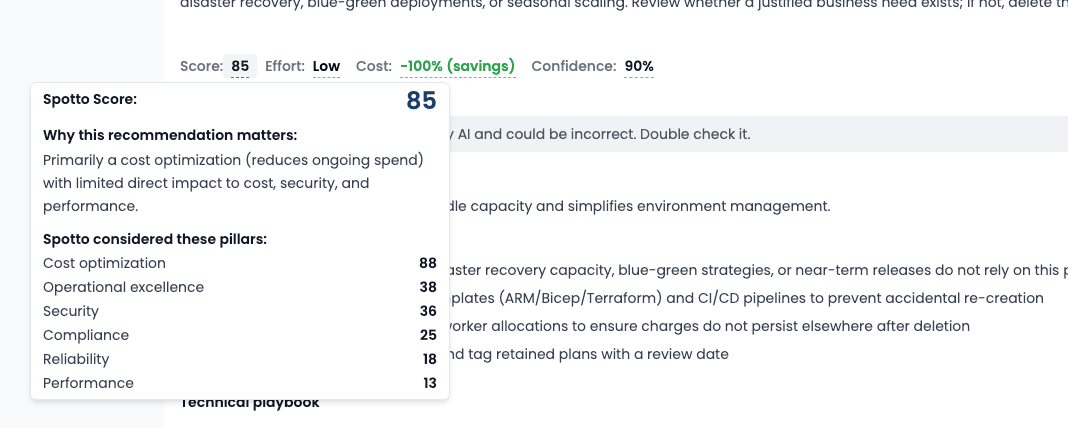
- Score next: recommendations are scored using a blend of impact, effort, risk, confidence, and exposure so you see high‑value items early.
- Savings as a tie‑breaker: when two recommendations are otherwise similar, higher savings (when available) is preferred.
- Category nudges: cost‑saving categories are slightly prioritised in the default view to reduce spend quickly.
You can always override this by sorting any column (Impact, Effort, Savings, Resources, etc.). When you apply a manual sort, the table follows your chosen order.
The score is a blended signal (impact, effort, risk, confidence, exposure). The breakdown is shown with the ranking view:
Filter and search like you mean it
Use search plus filters to narrow down from “everything” to “the work I can actually do this sprint”.
Common filters include:
- Category and impact (quick prioritisation)
- Resource type and location (team routing)
- Tags (cost attribution and ownership slicing; uses
key: valuestyle tags) - Created window (today / last 7/30/90 days, etc.)
- Effort, minimum resource count, and minimum cost
- From Spotto (show Spotto-generated recommendations)
Export and share
- Export the current view to CSV for backlog creation, reporting, or change planning.
- On a recommendation detail page you can share via channels configured for your company (for example email, Jira, Slack/Teams, depending on integrations).
Drill into details and take action
Select a recommendation to open the detail view, which focuses on answering:
- What is the recommendation and why does it matter?
- Which resources are affected?
- What are the quick steps / remediation guidance?
- What status should we assign (prioritise, dismiss, etc.) and what’s the reason?
For supported recommendations, the detail view can also show Implement so you can run a scoped remediation action. See Remediation Actions for the workflow, permission model, and supported action catalog.
Validate source details and supporting evidence
For recommendations, Spotto keeps the provider context visible where it is available instead of flattening everything into a generic task. That context can include affected resources, source category, impact, last updated date, provider description, remediation links, and extended fields such as retirement dates or target SKU details.
When source evidence is missing, the detail view should still be usable for triage, but treat the recommendation as a prompt for validation rather than a complete change plan.
Technical reference
| Component | Details |
|---|---|
| Inputs | Recommendation data per subscription (including provider-native guidance like Azure Advisor), provider metadata such as impacted resources and extended properties when available, plus Spotto’s resource inventory (type, location, tags, spend) and any Spotto-generated (custom) recommendations. |
| Outputs | Summary cards, a filterable recommendations table, recommendation detail view (resources + guidance), CSV export, and share/actions (prioritise/dismiss/restore). |
| Defaults | Cross-subscription recommendations are de-duplicated by recommendation ID and resources are combined. Default ranking prioritises must‑do items, then higher score (impact/effort/exposure/risk), with savings and cost categories as secondary nudges. |
| Limitations | Savings ranges are estimates and may be missing for some recommendations; treat them as prioritisation inputs, not invoice guarantees. Some recommendations may have “unknown” impact/effort depending on the source data. |
How it works (high level)
- You select one or more subscriptions.
- Spotto loads recommendations for those subscriptions and shows them in a single list.
- Recommendations with the same recommendation ID across subscriptions are de-duplicated; their affected resources are combined.
- Filters are applied using recommendation fields (category/impact/effort) and resource fields (type/location/tags/spend/created time).
How it differs from Retirement Tracker (and why both matter)
Recommendations are mostly about continuous optimization: reduce waste, improve performance, and tighten security posture over time.
Retirement Tracker is about deadline-driven risk: Azure announces that something will stop being supported (or stop existing), and you need to migrate/upgrade before the date.
In practice:
- Use Recommendations for “what’s worth doing next?” work.
- Use Retirement Tracker for “what will break if we ignore it?” work.
They’re complementary: one keeps your cloud healthier, the other keeps it from surprising you during a change freeze.
Troubleshooting
The page is empty / I don’t see any recommendations
What you’re seeing: No rows, or an empty state prompt. Likely causes:
- No subscriptions selected.
- Subscriptions are still onboarding or not fully synced. How to fix:
- Select at least one subscription in the subscription picker.
- If the subscription is still onboarding, wait for ingestion to complete and refresh.
I can’t dismiss or implement a recommendation
What you’re seeing: Actions fail, or you don’t see the expected effect.
Likely causes: Dismissal and remediation use different write permissions. You may see errors like 403 Forbidden or Permission denied when the configured role does not include the required action.
How to fix:
- For remediation actions, match the recommendation to the permission set in the Remediation Action Catalog.
- For Azure Advisor dismissal, review Dismiss Azure Advisor Recommendations.
- Confirm the write role is assigned at the subscription, resource group, or resource scope that contains the affected resources.
Savings is blank or looks “too good to be true”
What you’re seeing: Savings shows -/empty, or the range seems off.
Likely causes: Not every recommendation source includes savings; estimates can be directional and depend on spend history and pricing assumptions.
How to fix: Use savings as a ranking hint, then validate against resource-level cost and your own constraints before changing production.
Supporting evidence is missing or thinner than expected
What you’re seeing: A recommendation has affected resources but limited provider notes, links, or extended details. Likely causes:
- Azure does not publish the same supporting fields for every recommendation type.
- Some Spotto-generated recommendations are based on resource inventory and cost signals rather than Azure Advisor evidence.
- New or recently changed resources may still be syncing. How to fix:
- Open the affected resource from the recommendation detail view.
- Compare with Azure Advisor if the recommendation is provider-native.
- Use comments or dismissal rationale to document any validation gaps before routing work.
Looking to enhance your cloud setup for cost efficiency, performance, reliability, or security?
Talk to a cloud specialist. Email us or schedule a 30-minute consultation and let's optimize your cloud environment together.
Book a Free Consultation