Azure Cloud Account: Connect and Update Access

Overview

This guide will walk you through setting up read-only access so Spotto can analyze your environment and provide actionable recommendations. It also covers how to update credentials for an existing cloud account, including changing the Service Principal Client ID.

Why Connect Spotto to Azure?

By connecting your Azure environment, Spotto can provide insights and recommendations across:

  • Cost optimization
  • Performance improvements
  • Security posture
  • Availability and reliability
  • Compliance with the Azure Well-Architected Framework and industry best practices

Spotto uses your environment data exclusively to generate these recommendations. Your data is:

  • Stored securely in your selected region (US, EU, or Asia Pacific)
  • Never shared with third parties
  • Fully deletable at any time via the Spotto Portal

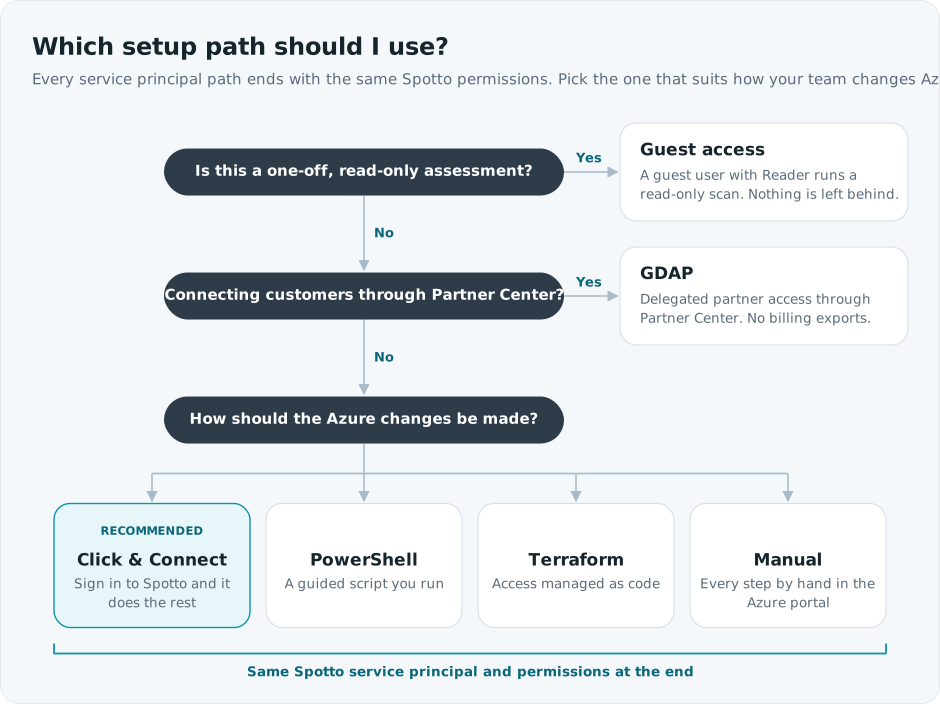
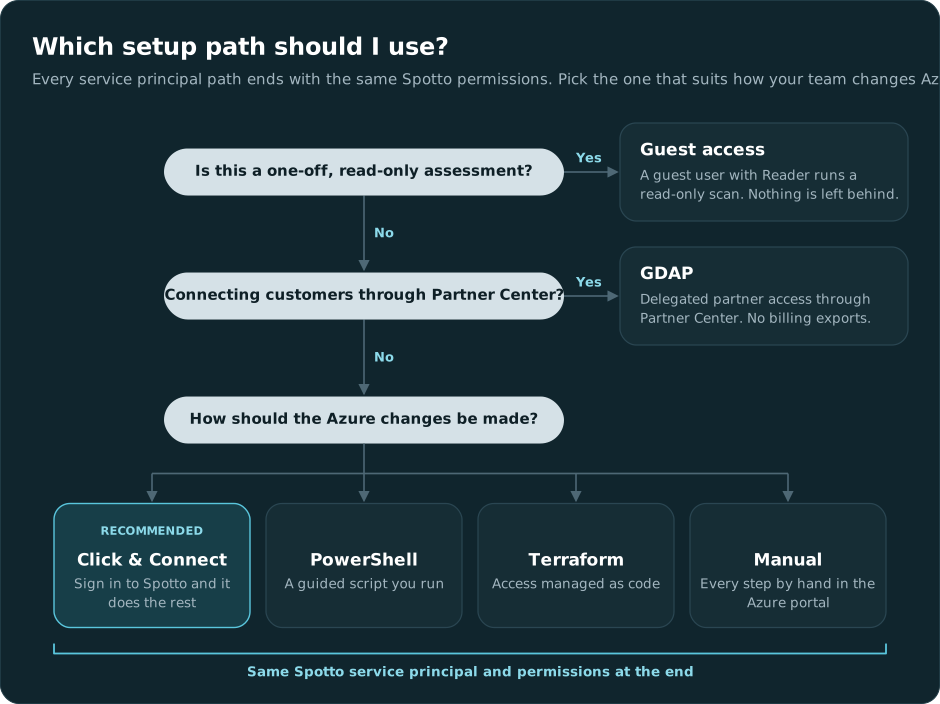
Choose Your Setup Path

Automated Setup (PowerShell)

Use this path for the fastest setup and the broadest onboarding coverage.

Show PowerShell steps

Our automated PowerShell script handles everything for you:

  • ✅ No manual clicking through Azure Portal
  • ✅ No risk of missing critical permissions
  • ✅ Complete setup in under 5 minutes
  • ✅ Includes Reserved Instance & Savings Plan access (competitors often miss this!)
Run the PowerShell script →

The script configures:

  • Reader role on subscriptions
  • Reservation Reader (tenant-level) for Reserved Instances
  • Savings plan Reader (tenant-level) for Savings Plans

It can also optionally add these recommended subscription roles:

  • Monitoring Reader for metrics, alerts, diagnostics, and Application Insights data
  • Log Analytics Data Reader for Log Analytics workspace queries and table data

After the script completes, continue to Add or Update Azure Account in Spotto.

Automated Setup (Terraform Module)

Use this path if you want to automate onboarding with Terraform.

Show Terraform setup

Our public Terraform module automates Azure onboarding:

  • ✅ Creates the Entra ID app and service principal
  • ✅ Assigns Reader access for your subscriptions
  • ✅ Outputs the IDs and secret needed for Spotto
Use the Terraform module →

After terraform apply, use the module outputs (application_client_id, tenant_id, client_secret, client_secret_expiry) when you Add or Update Azure Account in Spotto.

caution

Terraform state contains the client secret. Store state in a secure remote backend and treat it as sensitive.

Manual Setup (Azure Portal)

Manual setup can include optional monitoring roles plus tenant-level permissions for Reserved Instances and Savings Plans, but you must add those roles separately. If you skip the monitoring roles, Spotto still connects but some monitoring and log-backed data will be limited. If you skip the tenant-level roles, those datasets will be missing in Spotto.

Show manual steps (portal)

1. Create an Entra ID (Azure AD) Application

  1. Go to the Azure Portal and sign in.
  2. Search for Entra ID and click on "Microsoft Entra ID"
  3. On the left menu, expand Manage and click on App registrations.
  4. Click New registration.
  5. Enter a name, e.g., Spotto AI.
  6. Under Supported account types, choose Accounts in this organizational directory only.
  7. Leave the Redirect URI blank, then click Register.
Azure Entra ID App registrations page with New registration selected

After registration, record the following details:

  • Application (client) ID
  • Directory (tenant) ID
App registration overview showing the Application (client) ID and Directory (tenant) ID

You'll need these when adding your Azure account to Spotto.

2. Create a Client Secret

  1. In the App Registration you just created, go to Manage > Certificates & secrets.
  2. Under Client secrets, click New client secret.
  3. Enter a description (e.g., SpottoSecret) and choose an expiry period (recommended: 12 months).
  4. Click Add.
info

Copy the Client Secret Value immediately — it won't be shown again.

Also record the Secret Expiry Date

Certificates & secrets page showing a new client secret value and expiry

Assigning Reader at the management group applies to all subscriptions in that group and avoids repeating per-subscription setup.

  1. In the Azure Portal, search for Management groups and open the management group that contains your subscriptions.
  2. Open Access control (IAM).
  3. Click Add > Add role assignment.
  4. In the Role dropdown, select Reader.
  5. In Assign access to, choose User, group, or service principal.
  6. Click Select members, find your registered app (e.g., Spotto AI), and click Select.
  7. Click Review + assign to confirm.

If you don't use management groups, assign Reader per subscription:

  1. Navigate to, or search for Subscriptions and select the desired subscription.
  2. Open Access Control (IAM) from the left-hand menu.
  3. Click Add > Add role assignment.
  4. In the Role dropdown, select Reader.
  5. In Assign access to, choose User, group, or service principal.
  6. Click Select members, find your registered app (e.g., Spotto AI), and click Select.
  7. Click Review + assign to confirm.
Azure subscription Access control (IAM) page showing Add role assignmentAzure role assignment flow showing Reader role assigned to the Spotto app

Assign these on each subscription where you want Spotto to read monitoring and workspace data.

  1. Navigate to, or search for Subscriptions and select the desired subscription.
  2. Open Access Control (IAM) from the left-hand menu.
  3. Click Add > Add role assignment.
  4. Assign Monitoring Reader to your registered app (for example, Spotto AI).
  5. Repeat the same flow and assign Log Analytics Data Reader to the same app.

These roles are optional, but recommended for Azure Monitor metrics, alerts, diagnostics, Application Insights, and Log Analytics queries.

5. Assign Reservations Reader (Tenant-Level)

  1. In the Azure Portal, search for Reservations and open it.
  2. Open Access control (IAM).
  3. Click Add > Add role assignment.
  4. In the Role dropdown, select Reservations Reader.
  5. In Assign access to, choose User, group, or service principal.
  6. Click Select members, find your registered app (e.g., Spotto AI), and click Select.
  7. Click Review + assign to confirm.
Azure Reservations role assignment flow showing Reservations Reader selected

6. Assign Savings plan Reader (Tenant-Level)

  1. In the Azure Portal, search for Savings plans and open it.
  2. Open Access control (IAM).
  3. Click Add > Add role assignment.
  4. In the Role dropdown, select Savings plan Reader.
  5. In Assign access to, choose User, group, or service principal.
  6. Click Select members, find your registered app (e.g., Spotto AI), and click Select.
  7. Click Review + assign to confirm.
Azure Savings plans role assignment flow showing Savings plan Reader selected

Add or Update Azure Account in Spotto

  1. Return to the Spotto Portal.
  2. Go to Cloud Accounts.
  3. Choose one path:
    • New account: Click Add Cloud Account.
    • Existing account: Open the target cloud account row and click Edit (Pencil icon).
Spotto Portal cloud account form showing Azure IDs, secret, and validation Cloud Accounts list showing an existing Azure cloud account with the Edit action available
  1. In the cloud account details form, enter or update:
    • Name e.g. My Azure Environment
    • Application (Client) ID
    • Directory (Tenant) ID
    • Client Secret
    • Secret Expiry Date
Cloud account details form showing Application Client ID update and Validate Credentials action
  1. Click Validate Credentials.
  2. Save:
    • Create for a new account.
    • Update for an existing account.
important

If you are editing an existing cloud account, validation alone does not save changes. After Validate Credentials, click Update.

Spotto will confirm access and display a list of subscriptions with read-only permissions.

You're Done!

Once validated, Spotto will begin analyzing your environment and will surface recommendations shortly. You can manage or delete your cloud account and data at any time via the Spotto Portal.

For further assistance, please Contact Us.

Troubleshooting

Credential validation fails in Spotto

What you're seeing: Spotto reports validation failed when adding the Azure cloud account.
Likely causes:

  • Application (client) ID / Tenant ID copied from the wrong app or tenant.
  • Client secret expired or the value was not copied correctly.
  • Reader role assignment hasn’t propagated yet. How to fix:
  1. Re-check the Application (client) ID and Directory (tenant) ID from the same app registration.
  2. Create a new client secret and copy the value immediately (not the secret ID).
  3. Confirm the app has Reader assigned at the subscription scope and wait 5–10 minutes for propagation.

Existing service principal is blocked and needs replacement

What you're seeing: An existing cloud account no longer validates because the previous service principal is blocked, disabled, or rotated.
Likely causes:

  • The old app registration/service principal can no longer authenticate.
  • A new service principal exists, but Spotto is still using old credentials. How to fix:
  1. Go to Cloud Accounts and edit the existing Azure cloud account.
  2. Replace Application (Client) ID and related credentials with the new service principal values.
  3. Click Validate Credentials.
  4. Click Update to save.

Monitoring or log-backed data is missing

What you're seeing: Spotto connects successfully, but monitoring views, diagnostics, Application Insights, or Log Analytics-backed data is empty or incomplete.
Likely causes:

  • Monitoring Reader has not been assigned on the relevant subscriptions.
  • Log Analytics Data Reader has not been assigned on the relevant subscriptions.
  • Azure role assignments have not propagated yet. How to fix:
  1. Assign Monitoring Reader and Log Analytics Data Reader on the subscriptions you onboarded.
  2. If you use Terraform, add the companion azurerm_role_assignment resources shown in the Terraform section.
  3. Wait 5-10 minutes for Azure RBAC propagation, then validate again or refresh the affected Spotto view.

Spotto connects but subscriptions don’t appear

What you're seeing: Validation succeeds but the subscription list is empty or incomplete.
Likely causes: The app only has Reader assigned on some subscriptions (or in the wrong directory).
How to fix:

  1. Assign Reader on every subscription you want Spotto to analyze.
  2. Confirm you’re operating in the correct Entra ID tenant for those subscriptions.