Azure Setup Permissions: Who Can Connect Spotto
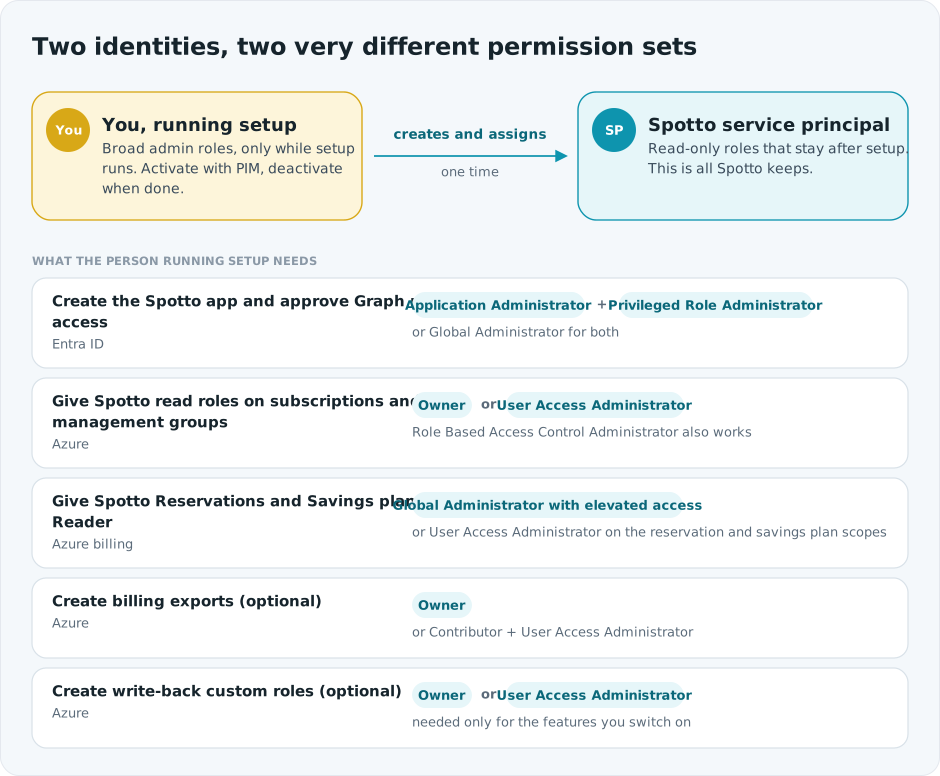
Setup involves two identities. You, the person running setup, need broad admin roles for a short time. The Spotto service principal you create keeps only read-only roles afterwards. This page covers what you need. For what Spotto keeps, see Permissions Spotto Needs.
What You Need
| Setup task | Role you need | Where |
|---|---|---|
| Create the Spotto app registration | Application Administrator, Cloud Application Administrator or Global Administrator | Entra ID |
| Approve Microsoft Graph read permissions (admin consent) | Privileged Role Administrator or Global Administrator | Entra ID |
| Assign Reader and the other read roles | Owner, User Access Administrator, or Role Based Access Control Administrator | Each subscription, or a management group above them. Use the root management group so new subscriptions appear automatically. |
| Assign Reservations Reader and Savings plan Reader | Global Administrator with elevated access, or User Access Administrator at those scopes | /providers/Microsoft.Capacity and /providers/Microsoft.BillingBenefits |
| Create billing exports (optional) | Owner, or Contributor plus User Access Administrator | Each export scope, and the subscription that holds the export storage account |
| Create write-back custom roles (optional) | Owner or User Access Administrator | Each subscription and management group you turn write-back on for |
| Connect the account in Spotto | A Spotto user who can manage cloud accounts | Spotto |
The short version: a Global Administrator who is also Owner on the subscriptions (or the root management group) can do everything in one sitting, after switching on elevated access for the reservation and savings plan roles. Activate both roles through PIM for the length of setup.
- Contributor can't assign roles. You need Owner, User Access Administrator or Role Based Access Control Administrator.
- User Access Administrator can't create billing exports or storage accounts. Add Contributor, or use Owner.
- Role Based Access Control Administrator can't create custom roles. Use Owner or User Access Administrator for write-back.
- Reservations and savings plans live outside your subscriptions, so Owner on a subscription doesn't cover them.
If no single person has all of this, split the work. An Entra admin creates the app and grants Graph consent, an Azure admin assigns roles, and a billing admin handles exports. The PowerShell script and Terraform module can be rerun safely by each admin in turn, and Manual setup lists each step separately.
Using PIM Or Just-In-Time Access
You don't need standing Owner or Global Administrator. Spotto setup works well with Microsoft Entra Privileged Identity Management (PIM).
- Check first. Run
Setup-SpottoAzure.ps1(how to download it) and choose Check prerequisites. It lists your active and PIM-eligible Azure roles for each scope. It makes no Azure changes unless you approve its optional fix, which assigns you Cost Management Contributor for billing exports. - Activate your Entra role, such as Application Administrator or Global Administrator. The prerequisite check can't see Entra PIM roles, so confirm this one yourself.
- Activate your Azure roles (Owner, or Contributor plus User Access Administrator) at every scope setup will touch. If your access comes through PIM for Groups, activate the group first.
- Wait until the roles show as active in the Azure portal and the Entra admin center.
- Sign in again, then start setup. A sign-in from before activation carries the old permissions, and setup fails partway.
Choose an activation window long enough for setup, billing exports, validation and a retry. If a role expires mid-setup, role assignments or exports can fail partway through. Rerun setup once access is active again; it reuses what already exists.
If Setup Fails After PIM Activation
- Rerun Check prerequisites and confirm the failed scope shows active rather than PIM eligible.
- Sign out of Azure and Spotto, then sign in again so your token includes the activated roles.
- Confirm the role is active at the exact scope that failed. Reservation and savings plan scopes are separate from subscriptions.
- Confirm your tenant's consent policy allows your role to grant Graph admin consent.
- Confirm the export storage account doesn't block Cost Management writes or Spotto reads.
- Rerun setup.
After Setup
- Deactivate your PIM roles if your policy doesn't expire them automatically.
- Nothing you activated is shared with Spotto. The service principal keeps only the roles described in Permissions Spotto Needs.