Cost Alerts: Budget and Cost Anomaly Monitoring
Overview
Cost Alerts in Spotto help you catch “this is getting expensive” situations early—either because you’re trending toward a budget overrun, or because daily spend suddenly looks abnormal. Each alert is meant to answer two questions quickly: what happened and where to look next.
Cloud provider billing data often arrives with delay. Spotto uses estimation and forecasting to warn earlier during that delay window. Treat alerts as early signals—and validate final numbers against your provider billing exports.
Feature overview
Cost Alerts include two alert types:
- Budget alerts: Track spend against a budget over a defined period and warn when thresholds are crossed. Budget alerts can also include a period-end forecast so you can act before the month ends.
- Cost anomaly alerts: Detect unusual daily spend changes (spikes or sudden shifts) over the last ~30 days and prompt investigation.
Once an alert triggers, you can:
- Acknowledge it (you’ve seen it; you’ll investigate or handle it later).
- Resolve it (you’re done; it shouldn’t keep paging you).
Why use this? (Jobs, pains, gains)
Jobs to be done
- When spend is trending up, I want an early budget risk signal, so I can adjust before month-end.
- When costs jump unexpectedly, I want to pinpoint the drivers, so I can fix the actual cause (not debate the invoice).
- When I manage multiple subscriptions or environments, I want to scope alerts to the part I own, so the signal stays actionable.
Common pains
- You notice overspend only after month-end close (which is… not ideal timing).
- Provider-native alerts can tell you “spend increased”, but not always “what caused it”.
- Teams share subscriptions, tags drift, and you end up paging the wrong people.
What you gain
- Earlier warnings via forecasting and estimation (when billing lags).
- A cost breakdown view that helps you narrow down the likely drivers by subscription, service, and resource.
- A lightweight workflow (Acknowledge/Resolve + notes) so alerts don’t become “that list everyone ignores”.
Key capabilities
Where to find it
In the Spotto Portal, open your company and go to Tasks -> Monitor -> Alerts.
Create alert definitions (the rules)
Alert definitions are the “what to watch” rules. A definition typically includes:
- Type: Budget or Cost anomaly
- Scope: which subscriptions and/or tags the rule applies to
- Trigger conditions: when the alert should fire
- Destinations: where notifications should be sent (email, webhooks, ticketing, chat)
Default alerts for new companies
After Spotto registers Azure subscriptions for a new company, it creates three enabled Cost anomaly definitions. They use billing-backed amortized daily cost and do not need a fixed currency amount or completed billing summary at setup time.
| Default definition | Trigger |
|---|---|
| Daily spike guard | One day is at least 25% above the average of the previous 7 consecutive calendar days. |
| Day-over-day jump | The day is at least 25% above the previous 7-day average and at least 50% above the previous day. |
| Month-over-month jump | The day is at least 25% above the previous 7-day average and at least 30% above the same calendar day last month. |
The definitions initially cover all enabled Azure subscriptions, use no tag filter, and notify the Default action group when an alert opens. Spotto does not create a Budget alert automatically because a useful budget still needs your amount, period, and currency choices.
These defaults remain yours to control. If you rename, edit, disable, or delete one, Spotto does not restore or overwrite it. Untouched defaults expand to include subscriptions registered later.
Each definition skips evaluation when any comparison evidence it requires is unavailable: the prior 7-day window for all three, plus the previous day for day-over-day or the same calendar day last month for month-over-month. Missing evidence is not treated as zero spend.
Scope (Subscriptions and Tags)
You can scope an alert to:
- One or more subscriptions, or
- Tags (for example,
env=prod), using:- any: match if a resource has any of the selected tags
- all: match only if a resource has all of the selected tags
Practical tip: if you’re not sure tag coverage is consistent, start with any (or start with subscriptions), then tighten scope once you’ve confirmed the signal is correct.
Triage alerts (History and Details)
From the alerts list, you can filter by:
- Status: open, acknowledged, resolved
- Type: budget, cost anomaly
- Date range (useful for “what happened last week?” investigations)
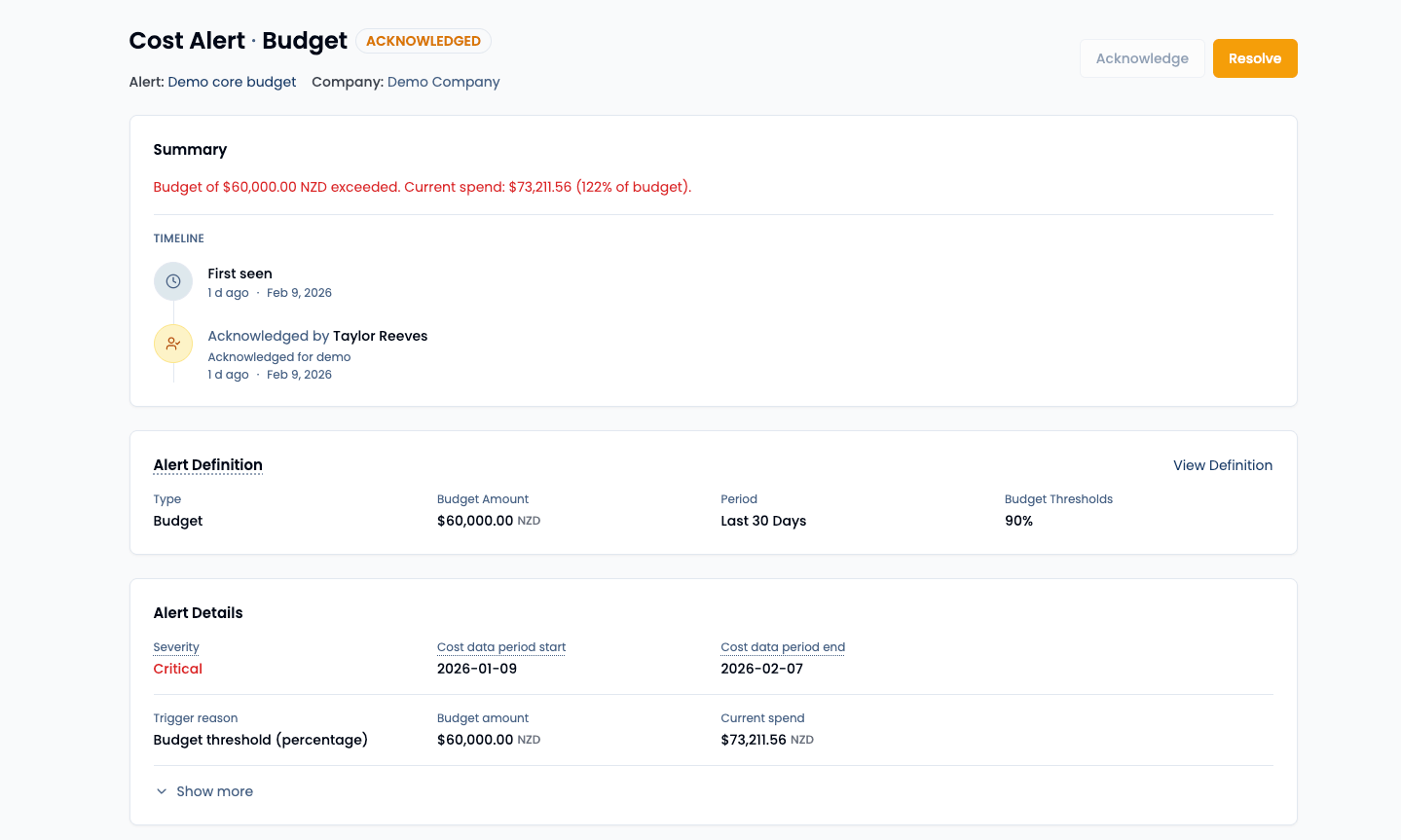
In the alert details view, you’ll typically see:
- A human-readable summary of what triggered
- A timeline of “first seen / last seen / acknowledged / resolved”
- The original alert definition (when available)
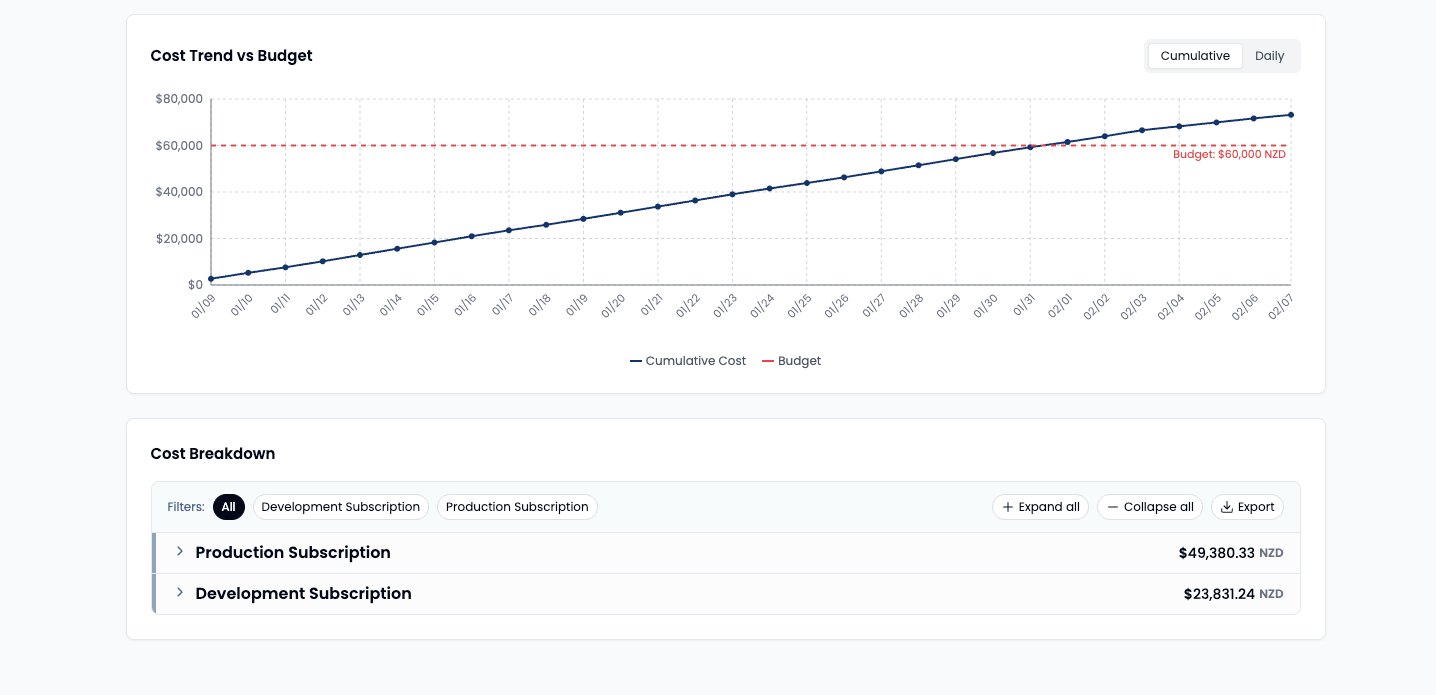
- A cost breakdown to help you locate the likely drivers
Understand spend, estimation, and forecast (without overthinking it)
Cost Alerts may use multiple data sources, depending on what’s available at evaluation time:
- Billing-backed: spend supported by cloud provider billing data. Cost anomaly comparisons use the amortized basis.
- Estimated: best-effort spend estimates used when billing data is delayed or incomplete.
- Blended: a mix of billing-backed + estimated spend (common during delay windows).
- Forecast: projected future spend for the remaining days in the period (used by budget alerts).
Better early estimates for Azure VMs and SQL Databases
Spotto now estimates VM and SQL Database run-rate from the resource configuration (size/SKU, region, disk) and Azure retail pricing, then tunes that estimate with recent billing when it exists. This means alerts and breakdowns include these resources sooner, especially right after a VM/SQL create or resize.
For Last 30 Days budgets, we intentionally don’t show a forecast. That view already represents a complete rolling 30‑day window, so a forecast would just echo the current spend and add noise. Instead, you’ll see a clearer signal based on billing-backed + estimated data only.
If a coverage indicator is shown, treat it as a sanity check:
- Higher coverage usually means the current-period view is based on more complete data.
- Lower coverage means you should treat the result as an early warning (still useful, but not “final invoice”).
How it differs from provider-native alerts
Provider-native tooling can often alert on spend or budgets, but Cost Alerts in Spotto are designed to be:
- More explainable: the alert is paired with a breakdown view so you can move from “we’re over” to “it’s these services/resources”.
- More actionable across scope: you can target subsets via tags and multi-subscription definitions, then route notifications to the right destination.
- More early-warning friendly: forecasting and estimation are used to surface risk earlier when billing is lagging.
Limitations (honest, boring, useful)
- Alerts are not real-time. They depend on successful data refreshes and upstream billing/metrics availability.
- Forecasts are estimates. They’re directionally useful, but you should still validate against billing exports for settlement numbers.
- Tag-scoped alerts are only as good as your tags. If tags are missing or inconsistent, scope accuracy will reflect that.
- Some specialized configurations (for example, serverless SQL or certain disk types) may show a lower-confidence estimate until billing data arrives.
- If Azure snapshots lag after a create/resize, the first alert may show a lightweight placeholder for that resource.
Troubleshooting
A budget alert didn’t trigger, but spend is clearly rising
What you’re seeing: Spend is climbing, but no open budget alert appears.
Likely causes:
- The definition is disabled or scoped to the wrong subscription/tags.
- Thresholds are set too high (for example, only 100%).
- Billing data is lagging, so current spend hasn’t fully landed yet. How to fix:
- Confirm the definition is enabled and scoped correctly.
- Add an earlier warning threshold (for example, 70–80%) if you want lead time.
- Re-check after the next data refresh if you suspect billing lag.
Forecast looks “way too high” (or “way too low”)
What you’re seeing: The projected period-end spend looks unrealistic.
Likely causes:
- Early in the period, there isn’t enough data for a stable trend.
- A recent spike is being extrapolated forward (which might be the point—spikes matter). How to fix:
- Check the breakdown to see whether the forecast is driven by a small set of services/resources.
- Treat forecast as a risk signal, then validate your final numbers with provider billing exports.
An alert has no breakdown available
What you’re seeing: The details view shows no breakdown.
Likely causes:
- Breakdown data isn’t available yet for that instance. How to fix:
- Use the summary as your immediate signal (it’s still actionable).
- If you need deeper triage, validate with provider billing views and check again after a refresh.
Tag-scoped alerts are too quiet (nothing triggers)
What you’re seeing: Alerts scoped by tags rarely trigger, even though you expect activity.
Likely causes:
- Tags aren’t consistently applied (especially with all matching).
- The spend drivers don’t actually carry the tags you selected. How to fix:
- Start with any matching, then tighten to all once tag hygiene is confirmed.
- Validate tag presence on the resources you expect to be in scope.
Some notification details look redacted
What you’re seeing: Destination fields (emails, webhook URLs) appear hidden.
Likely causes:
- You’re not viewing as an administrator, and Spotto redacts secrets by default. How to fix:
- Ask a company administrator to verify the destination configuration.
If you’re still stuck, capture:
- The alert definition name
- A screenshot of the alert summary
- The time range you expected it to trigger
…and send it to your Spotto contact or contact us.